Saturday, February 28, 2009

Open Scriptures' Manuscript Comparator

I've just discovered a fascinating online tool by Weston Ruter provided through his OpenScriptures web site. It is a remarkable demonstration of semantic linking showing how one can bring together biblical texts from the web and collate their similarities and differences. The payoff is the Manuscript Comparator that recently went live with the full New Testament available. Read more about it here and see the introduction and menu to the Comparator HERE. Here is how Ruter describes the project:

The database is constructed as follows: various manuscripts available on the Web today are each imported into the database individually, storing each manuscript’s word (token) separately with a unique identifier for each. After all of the individual manuscripts have been imported, they are then all merged together into a unified manuscript. The merging algorithm normalizes the text for comparison by removing all casing, diacritics, and punctuation; the unified manuscript stored in the database is composed of these normalized words. So the result of the manuscript merge is a unified manuscript which consists of every possible variant attested to by the contributing manuscripts; furthermore, all of the tokens in an individual manuscript are linked back to their corresponding words in the unified manuscript. Thus every manuscript is linked to every other manuscript by means of their links to a common point, the unified manuscript.
You'll enjoy simply playing around with the Comparator. First you set configuration options. Note the seven NT texts you can use, and to them you can choose to add Strong's definitions.
Here is what the results look like for a parallel display of Mark 1.1-3 (that will link you to the live version; below is a static graphic):

You'll want to read Ruter's description, but you can see quite easily the differences highlighted between the texts of NA, UBS, WH, and Tischendorf as compared to the Byzantine (Majority) Text and Textus Receptus. In my screen capture above, you can also see how hovering your mouse over a word in one of the parallels will highlight it in the other. If only certain versions have a particular reading, it will be highlighted in yellow in the heading. (In my example you can see where only Tischendorf includes the 1st singular pronoun.) In the hover-over popup, you can also see where morphological information is included along with--if you had chosen it in the configuration--a definition provided from Strong's.

BTW, if you will be attending BibleTech09 (sadly, I am not able to do so this year), Ruter is one of the speakers and will be talking about his Open Scriptures project which he describes as:
a comprehensive open-source Web repository for integrated scriptural data and a general application framework for building internationalized social applications of scripture.
Thanks to Weston Ruter for sharing this excellent resource!

Unicode Greek font with full set of symbols

Danny Zacharias noted this Unicode Greek font on his deinde blog, but it's worth repeating here. If you can read French, check this page at the Institut Français d’Archéologie Orientale (IFAO) site. (If not, here is the page in comprehensible English.) The font is described as:

IFAOGrec Unicode: Unicode Greek font with special characters and editing epigraphic Papyrology

Successor Font to IFAOGrec2002 (A standard signs B, C Signs)
IFAOGrec Unicode is a font of all Greek and Coptic characters which includes the main diacritical marks, acronyms and symbols useful in editions of epigraphic texts or Papyrology as well as Greek texts in related fields (mathematics, astronomy, magic, music, poetry, etc.)..

It is fully compatible with other standard Unicode Greek fonts with respect to its character mapping (Main Area Plane 0) and tries to be as much as possible - with, for example, New Athena Unicode - in the private (Private Use Area) and Plane Zone 1. It also offers many characters absent from other fonts. It was also designed to harmonize perfectly with Times (New Roman), including its module and line spacing.

It was designed by Jean-Luc Fournet. The unicode implementation is due to Ralph Hancock. Its development was also assisted by Adam Bülow-Jacobsen. It is free and free of copyright.
As this text sample shows, it is an attractive font that does match well with Times New Roman. It is indeed free, even for publishers (with attribution). Do note that it has been especially designed for people doing text critical work, so there is a very full set of text critical symbols.
Near the bottom of the IFAO page you will find the ZIP file to download the file along with two PDF files providing documentation and character maps. If you need a Coptic font, IFAO offers a Unicode one as well.

Friday, February 13, 2009

First Online Virtual Library of Medieval Works

Catalogue of Digitized Medieval Manuscripts
As
reported in SpaceMart:

Two years ago [UCLA Asst. Prof. Matthew] Fisher, former UCLA Professor Christopher Baswell, two graduate students and a computer developer decided to collect links to every manuscript from the eighth to the 15th century that had been fully digitized by any library, archive, institute or private owner anywhere in the world.
Last December the researchers officially opened the Catalogue of Digitized Medieval Manuscripts that links to nearly 1,000 manuscripts by 193 authors in 20 languages from 59 libraries around the world.
Note that in addition to a ms. search function, you can also browse by location of ms., shelfmark, author, title, or language. Anything medieval is usual way too modern for a NT guy like me, but it does include quite a number of biblical mss. Below is a screen capture of Codex Delta, a 9th century Greek/Latin ms. of the Gospels. Shown is the (longer) ending of the Gospel of Mark and below it are Eusebian references to sections in Luke which follows.

Wednesday, February 11, 2009

Logos and Zotero

Here's some good news! Phil Gons has just posted a notice on the Logos blog about exporting all the bibliographic info from your Logos/Libronix library into Zotero. I've been recommending Zotero for some time, so this is an incredibly easy way to integrate the two. Follow the directions on Phil's post. It took me less than 3 minutes to export my 736 unlocked resources in Logos and then import them into my Zotero collection. See the graphic above.
Thanks for pointing out this most excellent way to do this!

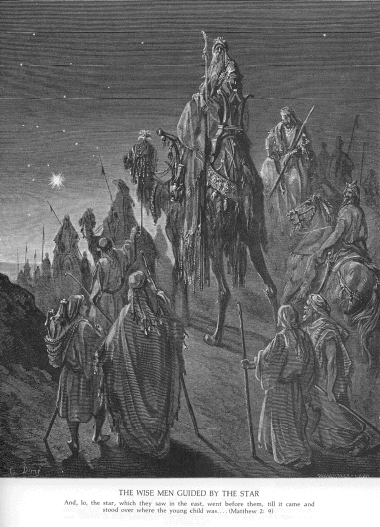
The Doré Gallery of Bible Illustrations: Online and in Bible Software

Gustave Doré was the popular 19th century French illustrator known for his 'dramatic' depictions. In 1866, he published an illustrated 2 volume work with over 200 Bible illustrations, but his also illustrated numerous other works (Dante's Divine Comedy, Milton's Paradise Lost) and had hosts of other indiviual pieces. His fame continues today, since his works are in the public domain, have been widely scanned, and are easily available for free on the Internet. You will probably recognize his images for their distinctive woodcut style.
I have collated some of the best ways to access his Bible-related works, noting both ways to obtain images online, to download, or to integrate with Bible software.
(Links provided to download modules for Accordance, BibleWorks, E-Sword, LaParola, and Logos. You may already have the artwork in Accordance, but these are free downloads for the other programs. The PBB file for Logos is brand new thanks to Don Ring. [UPDATE: LaParola added to list via comment by Richard Wilson.])

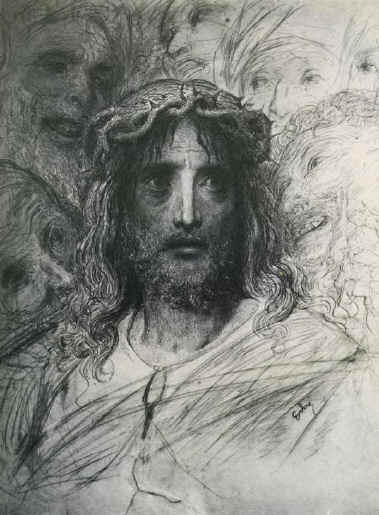
While Doré was not regarded as an 'elite' artist in his own day and most of his images certainly have a 19th century look to them, he does have some interesting depictions worth considering. Here's an illustration of Jesus (not included in the Bible volumes) that is rather well done, imo.

Tuesday, February 10, 2009

Free "Notes for the Study of the New Testament" Update

Terry Cook has given me permission to post his updated Notes for the Study of the Greek New Testament. (I posted about an earlier edition here which was 305 pages long. This new one is 364 pages.) I quote from his preface:

As will become immediately clear, what follows is built on foundational work done by many others and as we go along, the importance of these foundational contributions will become clear. The purpose of this presentation is to help explain Greek grammar and syntax with an approach that is different from the usual Greek textbooks or supplements. The goal of this supplement is to clarify and reinforce the material presented in the textbooks given in the bibliography, after the students’ initial reading.
Very important to the use of this guide is understanding the layout so that the user will be able to make the most of the material. The design includes hundreds of “notes” from these textbooks on all the features of New Testament Koine that I felt might be important to a 2nd-3rd year Greek student whose primary interest is the Koine Greek New Testament. I have provided information on syntax and grammar, definitions5 (which appear at the end), explanations, and examples from both English and Greek- citing examples from the Greek New Testament when appropriate. It is my hope that when used as intended this guide will help students to gain a solid foundation upon which to understand the New Testament in its original language and that this guide might lead the student to pursue subsequent study and gain a thorough mastery of the language. Again, this guide is not intended for use as a stand-alone study guide but aims to provide the interested person a supplement to one or more of the many fine textbooks available.
It is thought that this essay might be profitable for use in self-study,6 for use in the classroom, and as an independent reference tool.
He has over 50 Greek grammar and reference works listed in the bibliography including the usual suspects: Funk, Goodwin, Machen, Moule, Moulton, Mounce, Nunn, Porter, Robinson, Wallace. The Table of Contents displayed below will give you an idea of the organization. The Glossary at the end is also worth consulting.
I checked some things that are often confusing to students like the article, participles, infinitives, tense, and case, and I found him to offer solid, reasonable remarks throughout.
Thanks to Terry Cook for sharing this fine resource. You can download the 1.8Mb PDF file HERE.

Monday, February 9, 2009

International Septuagint Day

This is what I get for letting my reader get piled up. I missed the International Septuagint Day on February 8. Bummer. Then again, every day ought to be a celebration of the LXX. Put it on your calendar for next year, and check out all of Tyler Williams' reasons for studying the LXX.

Catching up - Part 1

With over 100 items saved up in my Google Reader, it's time to either get them out or declare bankruptcy. So, let me simply point to a bunch of stuff I found interesting enough to save that is related either to biblical studies or education.

Jane's E-Learning always has lots of good stuff. Here are some she has highlighted:

  • Lovely Charts for making flowcharts, sitemaps, etc.
  • A Guide to Social Learning now available as a "social resource."
  • Academic Earth.org with "1000s of video lectures from the world's top scholars;" include Christine Hayes (Yale) OT Intro
  • PhotoPeach is a free online tool to make slideshows; kind of like MS Photostory, but it allows for viewers to add comments
  • exploratree " is a free web resource where you can access a library of ready-made interactive thinking guides, print them, edit them or make your own. You can share them and work on them in groups too." This one looks interesting...
  • ScreenToaster: If you don't have Camtasia Studio for doing screen captures, you can use the free Jing app, but ScreenToaster which is also free might be even simpler to use. Easy signup, choose fullscreen or area recording, audio or not, webcam or not, and go. Files can be uploaded to ScreenToaster or YouTube or downloaded as AVI or SWF. Very nice.
  • MixedInk: "MixedInk takes a fresh approach to collaborative writing. It's a fun, democratic and elegant way for people to weave their best ideas together. (Plus, it's free!)" I could see using something like this in developing course syllabi or defining desired outcomes. Want to give it a try? You will need to create a free account, but then come HERE and say why you think learning biblical Greek is important.
Shoot... I just cleared out 14 entries, but in the time it took to put this together, another 10 came in. Still over 100 in my reader... That's it for now.

Friday, February 6, 2009

Google Books for iPhone and Android phone

Yesterday (2009.02.05), Google announced:

Today we are excited to announce the launch of a mobile version of Google Book Search, opening up over 1.5 million mobile public domain books in the US (and over half a million outside the US) for you to browse while buying your postage.

While these books were already available on Google Book Search, these new mobile editions are optimized to be read on a small screen. To try it out and start reading, open up your web browser in your iphone or Android phone and go to http://books.google.com/m.
Interesting... As noted on Yahoo Tech news, this poses something of a challenge to Amazon's Kindle reader. (Also note the other free ebook apps for iPhone mentioned there: Stanza, eReader or BookShelfLT.)
I did check out the mobile Google book site, and there is a whole section on Religion with the usual suspects of public domain books. There are a number of Greek texts such as Winer's 1874 Grammar or Souter's 1913
Text and Canon of the NT or Goodwin's 1860 Syntax. To keep things efficient for a mobile device, everything has been rendered with OCR, but in the instances with Greek, note that you can click on the paragraph to have the original appear as a graphic. (Cf. the graphic below with the image of the Greek and the confused Greek OCR below it.)

In any case, it's all free and may prove helpful to you.

Tuesday, February 3, 2009

Creating Concordances using Accordance, BibleWorks, Logos, LaParola

Bible software has pretty much eliminated the need for concordances. Back in the day, I spent a lot of time in Moulton & Geden's Concordance to the Greek Testament, Hatch & Redpath's Concordance to the Septuagint, Evan-Shosham's New Concordance of the Bible, or the BHS concordances by Lisowski or Mandelkern. On the BibleWorks forum, however, someone was asking how to create a concordance that could be printed out for just a single book of the Bible. The goal, besides having a printed copy they could use when away from their computer, was to help in reading by paying attention to when a word was previously used so that they had some help in building up their vocabulary. I can also see that having a book-delimited concordance would also be helpful for getting a sense of an author's vocabulary and identifying themes and key terms in that book. So, how does one create such a concordance using the usual suspects in the Bible software field? For my test here, I tried to create a concordance for the book of Jude.

BibleWorks
It can't be done easily. There are quite a few tools one can use to look at the information in a variety of ways, but there is no simple way to create a concordance. John Fidel showed probably the best way on an earlier BW thread. You could also use such tools as the Word List Manager to get a list of all the words with their frequency but no way to note which verses. The Keyword in Context (KWIC) tool provides another way of viewing the text, but that also would be a one at a time copy/paste task. You could also use the Report Generator and choose something like the Gingrich lexicon which provides many references, but it still won't really give concordance-like info in a compact form.

Logos
In Logos you can do a search using the * wildcard on your preferred text. (You can use either the Bible Search or a Greek Morphological Search, but for some reason, my results were displayed differently in each.) When the search results are returned (and it did take a minute even just with Jude), you will be tempted to hit the Concordance option in the top right, but that won't give the results you probably want, since it returns hits according to form rather than according to root. Instead, hit the "Search Analysis by Lemma" option which will return the results shown above. Note that it does group the words by lemma but still breaks them down according to form. I couldn't figure out how to add a gloss to the entries. It is a nice concordance format with the word bolded in context, but it may not be what you want for printing. Jude alone would require 35 pages. I couldn't figure out a way just to get verse references without the full verse.

Accordance
Accordance is the clear winner in accomplishing the task of generating a concordance. It is simply a matter of doing a wildcard search on the version of choice with limits set and then hit the Details button, then the Concordance button. That's it, and it is very fast. The screen shot above shows the kind of concordance entry one usually is looking for, and note that it also provides a gloss along with the frequency and verse references. Also note that the Concordance output can be adjusted as you can see above. You can set it to display the results for just the one book or for the words in that book within the full NT. If you want to see the text, simply set the display threshold to a number greater than 1. You can also show parts of speech if you want. Below shows another concordance view.


LaParola LaParola wins for cost and ease of creation. The program is a free download and uses the CCAT MorphGNT, BHS, LXX, and a number of public domain English and Italian versions as well as many other resources. In LaParola, creating a concordance is simply a matter of hitting F7, choose the passage, text, how you want the words ordered, and whether its based on words or roots, hit OK, and you immediately get the concordance as shown above. No glosses, but it a very compact form for printing.

Other
I couldn't find an easy way to create a concordance in E-Sword, Online Bible, QuickVerse2009, or BibleExplorer4. If you know of other ways to generate a concordance, please share it here.

Google Earth 5 Now Available

Google Earth 5 is now available for download, and they have added some great new features. Most notable among them is the new data and imagery for the oceans, historical imagery, 3D Mars, and tour recording. The ocean stuff is beautiful, and there are ways to go beneath the waves. Check out the video...

You can download Google Earth 5.0 here, but do also check out the various posts highlighting different features on the Google Earth blog.
As for its relevance to biblical mapping and visualizations, there is perhaps not so much to note. I checked quite a few archaeological sites hoping to use the historical imaging feature to see progress that has been made at places like Herodion, Ephesus, Corinth, or Beth Shean. Unfortunately, there is not much to see. Satellite images only go back to about 2003, and often the earlier images are of insufficient detail to see much of what was going on. At least one can now sometimes choose between images taken at different times of the year, or different lighting or different quality.

HERE is a 30 second screencast I did using the tour recording feature showing Ephesus in 2003, 2005, and 2006.

If anyone finds a good example of historical imaging related to a biblical site, let me know!

Monday, February 2, 2009

Listing of Texts in BibleWorks

I have updated an earlier listing of texts and versions in BibleWorks that now reflects the contents of BibleWorks8. Perhaps most helpful is that it provides a list of all the text abbreviations. There is an XLS spreadsheet as well as PDFs available, and they provide texts grouped according to content or else an alphabetical listing of all abbreviations. In addition to the contents in BW8, I have also included the user-created versions available for free download at the BibleWorks Blog site. I have listed pretty much all the Hebrew, Aramaic, Syriac, Greek, Latin, and English texts, but I have not compliled a list of all the modern, non-English Bible versions. (If someone else has the time/interest to do so, I would be happy to add them to the list.) Here you go:
List of BibleWorks Texts and Abbreviations
XLS spreadsheet / PDF:grouped / PDF:A>Z

Saturday, January 31, 2009

Research on the go (or Photocopiers are so 20th century)

Most of you have probably already figured this out, but I find I need to remind my students occasionally about some research tools we now have that were not readily available even five years ago. So, let's say you are in the library or a bookstore and you find something you want to remember. The 20th century way would be to get out paper and writing utensil or, if you were in the library, bring the book to a copy machine and make some paper reproductions. What does the true 21st century researcher do? [Check Tommy Keene's (TK) comment to this post.]
If it's short enough:

  • I use my PDA and add it as a note.
  • Send a text message to myself on my cell phone.
If it's a bit longer:
  • Use my PDA and make a voice recording.
  • Send a voice message to myself on my cell phone.
  • Send a voice message to your drop.io box. (Thanks, TK! I've been using drop.io for files, but I was unaware that you can also drop voice mails as well. [drop.io is free, but you do have standard phone charges.])
  • I had really liked using Jott (I'd blogged about it here) because it did voice to text conversion and sent them as text messages or emails. (I really hate trying to type out text messages on my phone...) Jott is dropping their free, basic plan, however. A standard plan will now cost $3.95/month which is not bad at all, but I wasn't using it quite enough to justify it. Do check out Jott Links, though. Using your phone, you could use the voice to text to set appointments for your Google Calendar, add items to your Remember the Milk list, update Twitter or FaceBook, or name some item/book and come home to find a link to that item on Amazon.
If it's a chunk of text or a visual:
  • In our seminary library, we now have a copier that saves files as PDFs and delivers them to my network folder. That's sweet...
  • No PDF copier? Use your cell phone camera or (if, like me, your cell phone is one of those ancient ones that only is a phone) take a digital camera picture. (Now, how do you get the pic from your phone to your PC? Good advice HERE.)
But what if it's really the text and not just a picture of it you want? Open your picture in optical Character Recognition (OCR) software.
  • I have an inexpensive scanner that comes with some basic OCR software. I can open JPG, PNG, TIFF... and it does a pretty good job of getting everything into text. Note that this also works well if you want to convert PDFs which are 'images' and not text. Use a screen capture utility (suggestions here) to take a pic of the PDF, then feed it through the OCR.
  • Don't have a scanner or OCR software. Check the Wikipedia OCR entry, and note the list of software (some of which is free/open source) available.
  • Don't want to bother with dedicated OCR? Want to try full-featured note-taking software? Then remember that Evernote (there is a free version--my review here and another here) and OneNote ($59 for Microsoft OneNote Home and Student 2007 or $80 as part of Microsoft Office Home and Student 2007) have a built-in tool that can identify and extract text from pics.
For biblical studies sorts, however, there is a problem... None of the OCR software (unless you buy very expensive professional stuff) knows how to deal with Greek or Hebrew text. (I do know of HOCR which is free OCR software for Hebrew, but I have not tried it.)

Do you have any research tools suggestions for the 21st century? Help save some paper and share them here!

BTW, as TK points out in the comment, did you see the Zotero icon up in the address bar of this (and any other) blog post? Click on that folder icon to see the Zotero options for saving info.

Popling: New Vocabulary Learning Tool

Popling describes itself as "a website + desktop app for people who want to learn, but lack motivation." What it does is popup on your computer (at whatever frequency you choose, e.g., once every 5 minutes) with a vocabulary word. If you click on it, you can get the answer/meaning to the question/word. (Or you can choose to ignore it, and it will go away.) Check out their video:

Popling Screencast from rob rhyne on Vimeo.
It is FREE to install and use Popling with registration, but the free version will have ads, and you can only subscribe to one database at a time. For $20/year you get no ads and multiple databases.

To give it a try, I set up a few databases of Greek and Hebrew. So, register at Popling and then download/install the program (which also includes installing Adobe Air). The installation was less than a minute for the whole process. You then subscribe to one of the many databases available. I created one for the Hebrew vocab in the first chapter of Weingreen's Practical Grammar for Classical Hebrew (look for it under Languages > Hebrew) and two for Greek vocabulary of words occuring more than 500 times in the NT. (Look for it under Languages > Other > Greek. The databases can only have a max of 100 words, so I had to split up the 170 into two groups alphabetically.) It is a web-based tool, so it is able to display Unicode. It works beautifully for the Greek. The Hebrew is not as well-rendered, and you will note that some vowels do not properly situate under the consonants.
BTW, to create these lists, I had to use Logos' Vocabulary Lists. (I couldn't use BibleWorks' FlashCard module, because I needed to get the text plus glosses into MS Word. The FlashCard module can export to PDF, but it uses the BW TrueType--not Unicode--font, and I would have had to do a bunch of work getting the glosses attached to the word.) In Logos, I was able to open the word lists and export them to HTML. Then copied it to Word where it imported as a table, then copied the table, did a bunch of search replace to set up the required syntax for Popling batch question construction, and then copied it all in to Popling's creator.
If you are looking to create a Popling list of your own, remember that Logos has a good selection of such lists already made (check this post) or to create them based on word frequency, check this post.
HT: makeuseof

Wednesday, January 28, 2009

Predicting (and preparing for) the death of your hard drive

A bit off-topic, but you really don't want to be surprised by the failure of your hard drive. My home / primary computer is now almost 4 years old, and one of the first parts most likely to go, along with all my data, is the hard drive. HERE is an excellent post from makeuseof that provides links to some free diagnostic programs you can use to evaluate the health of your hard drive. I tried a few of the programs, and I ended up keeping the CrystalDiskInfo one as providing the clearest info most quickly. (Note that it is basically a download/unzip/run type of program. Ie, it does not require a whole installation process.) As you can see on the graphic, my hard drive has been powered on 1925 times and has been running for 11014 hours. That's a lot, but it appears that it is holding up well and is in "Good" health. The help file with the program will point you to the S.M.A.R.T. info on Wikipedia which will help explain some of the numbers.
Even though the hard drive looks good, you should have some kind of backup plan. Remember, you are not only protecting against hard drive failure, you are also protecting against theft, fire, etc. Here are some steps I have taken.

  • I have burned a bunch of CDs and DVDs worth of data (especially the space-hogging pics and music). I keep these stored in a different location than home with this computer.
  • I have a bunch of data that I store on my Google account online. This is nice, because I can access it from anywhere if need be. I also use services like SkyDrive (25Gb), Dropbox and drop.io to store / access / share files online. (Also check this Christ-Tech post for info on making it much easier to copy files to SkyDrive.)
  • I keep data synched between this home computer and my laptop using a service like LiveSync (formerly FolderShare) or using my USB drive and ViceVersa FREE.
  • I bought an external hard drive and copied over all my data.
Okay, you can thank me later...
UPDATE: 1) Be sure to read the comments. 2) The latest CCMag just came out today and features a long article about backup plans, software, and recommendations. Check it out HERE.

Tuesday, January 27, 2009

Stupid Greek Tricks

Rod Decker has posted some fun Greek trivia, and it provides excuse for me to share a few stupid Greek tricks I use in my class.

Principal parts: I go (ερχομαι - present) to an ηλθον (aorist: ie, an ale-thon! Thanks, Brian!). While I am there, I πινω (present of "drink" and usually associated with a pina colada) and afterwards, in the future, I have to πιω!

Vocabulary:
The preposition δια with the accusative indicates motion through. It can be used as a verbal prefix, e.g., with the verb ῥεω which means flow, stream, gush. Put them together, and you have
δια-ῥεω = to flow through!

You've probably heard this one, but I have a postscript to it:
In the fourth century, the Roman philosopher Ambrosius Theodosius Macrobius reports in his Saturnalia (Book 2.4.11):

When Augustus heard that Herod king of the Jews had ordered all the boys in Syria under the age of two years to be put to death and that the king’s son was among those killed, he said, “I’d rather be Herod’s sow than Herod’s son.” ― Macrobius, The Saturnalia, trans. Percival Davies (New York 1969), 171. [Latin: Cum audisset inter pueros quos in Syria Herodes rex Iudaeorum intra bimatum iussit interfici filium quoque eius occisum, ait: Melius est Herodis porcum esse quam filium.]
It was doubtless a pun in Greek where hus /ὑς means pig and huios / υἱος means son. The joke is that, by Jewish observance, Herod wouldn't kill a pig, but he had no such scruples about his sons.

Postscript:
So I did some checking, and an alternative spelling for ὑς was συς. It struck me that the vocative form of this would be: συε. At least in the Midwest United States, as my grandfather who was a farmer could have told you, if you want to call a pig, you yell, "Sooey." (Sooey is in the dictionary.) My grandfather didn't know Greek, but I have to believe that is exactly what he was saying!

Getting (free) royalty-free music you can use

Sure there is a ton of free music on the web, but what if you want some music you can use as part of a presentation that you are sharing? You either need to compose and perform your own music or come up with some royalty-free music. A Google search for such music will return quite a few sites, but most of them have an up-front fee.
For free, royalty-free music (though sometimes there is a one-time fee or donation suggested and sometimes it is only free for educational or non-profit, and in most cases attribution is still required), may I recommend:

Want to create your own music even though you are not a musician? Try MS Music Producer (downloadable from the link, but follow directions). This is an old Microsoft orphaned program I played around with back in the 90s, but it's not bad. You pick your own style, personality, instruments (and you can move the instruments for separation and prominence), set tempo and key, pick the 'shape,' indicate if you want an intro/ending or if it should be looping, and set the length of the piece. Hit compose, and it creates a song on the spot. Don't like it? Just hit compose again or change instruments or personality. You save your creations as MIDI files.It won't be confused with professional music, but here's a 30-second example I made. If you just want some background music, it'll do.

For more info, check this fuller listing of resources I have.

Now, how did I get off on this subject? I was looking for some music by Vector (long disbanded but still worth listening) which featured the guitarist Jimmy Abegg. What I stumbled upon was some music by Marty and Bob Abegg. For biblical studies sorts, does one of those names ring a bell? Yes, this is the same Martin G. Abegg who is one of the authors ofthe Dead Sea Scrolls Bible and of The Dead Sea Scrolls - A New Translation. See, biblical studies can be cool after all!

Finding Flickr photos you can use

I have run across a couple helpful tools you can use as you are looking for photos you can legally use. The first is a Flickr CC Search Toy pictured above. The CC is for Creative Commons which is a great way to define rights for sharing and using a picture (or any other work). Just because a picture is on Flickr, it doesn't mean you can legally use it. (By default, when you upload a picture to Flickr, all rights are reserved. I.e., no one can use it.) E.g., a search for "Capernaum" returns over 4100 results. Using this Flickr CC Search Toy, I only get 271 results, but I can see quickly and clearly what rights I have for using them. When you enter your search term, it returns thumbnail results.

Click on the thumbnail to see a small image and get the code to embed the photo with attribution on your blog. When you see the code you can toggle left/ right alignment and small/medium size. If you are allowed to you can edit a large size in picnik, you will need to handle the attribution for this yourself.
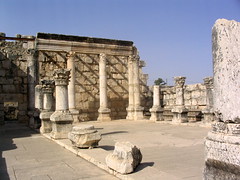
For my search for Capernaum, here is one of the results. Note that I was able simply to copy and paste the code provided.

Capernaum Synagogue by jcwrenn
Attribution-NonCommercial-NoDerivs License

The other tool is called Behold, and it holds promise but is limited for now.
As you can see, it allows you to search Flickr and specify images that are free to use (and modify) (and use commercially). That is great, and even better, once you get your results, it uses a screening technology to help sort by content. I.e., it can discern whether the pictures features faces or buildings or landscapes... So all this is good, but the limit is that Behold has already filtered out any pictures it determines are not "high quality." Instead of searching through the bazillion pics on Flickr, it's only looking through a little more than one million. For Capernaum, no results are returned at all.
[HT: CoolCatTeacher]
UPDATE (2008.01.28)
Thanks to the comment by Stephen Barkley, I did a bit more checking. I don't have a CC search that appears by default in my Firefox search. (Maybe Stephen will say more...?) I did check on Flickr, and note on the graphic above, if you click on the Explore menu option, the dropdown allows you to choose Creative Commons that results in the page shown. From here, you can choose the "See more" option based on any of the CC licenses, and then search for the image you want. Works great.

Monday, January 26, 2009

Syriac for OS X

I have been trying to keep a running list of Syriac resources HERE. This just showed up on the hugoye-list. (HT: Gareth Hughes):

XenoType Technologies have developed a language kit for OS X which extends Syriac language capabilities. The kit includes three fonts designed for AAT typesetting on OS X. Western vowels are not yet supported, but they will be. The fonts can be used with a Mellel keyboard and mixed with the Meltho fonts. The kit costs 59 USD, and a fourth typeface, western vowels and additional diacritics will be given to existing users for free when they're available.
More info and ordering HERE.

Thursday, January 22, 2009

BibleWorks New User Modules: Book of Concord, Strauss on ESV, Tacitus, Sophocles

I'm still learning the enhanced features of the new BibleWorks8, but if you are upgrading from BW7, there is really no additional learning curve to use the program. It's mainly providing enhancements, more tools, and more resources.
But in the meantime, the indefatigable Michael Hanel has updated and improved some user-created databases.

Sophocles in Greek and Tacitus in Latin and English: These were already available and the previous versions worked fine in BW7. Because of some naming changes, these are updates for BW8, and you should also grab the names file on the page as well.

Book of Concord: There was a previous version, but this is a major jump up from 1.3 to 3.8 Mb of data. This module works in both BW7 and BW8, and there are links from the module to Scripture and from Scripture to the module. (Cf. graphic below.) As Michael notes, it includes:

  1. German text of the entire Book of Concord
  2. An alternate English translation of the Augsburg Confession
  3. Materials considered “source and context” text, things like the 95 Theses, Heidelberg Disputation, the Saxon Visitation articles, etc.
  4. Text from Bente’s Historical Introductions to the Lutheran Confessions and more.
“Improving the ESV: Why the English Standard Version (ESV) Should not become the Standard English Version” a paper by Mark Strauss read at ETS: Richard Sugg took this paper and created a BW module which is now hosted on the BibleWorks blog. This paper generated a fair amount of discussion on the blogosphere. [BWBlog: For more on Strauss’s paper see his blog post at Koinonia as well as Bill Mounce’s response. See also Strauss’s paper as posted on the Better Bibles Blog (and the comments thereon).] Like the Book of Concord module above, what's so helpful about this module is that it is able to link the many Scripture references in the paper to the texts in BW so that they are just a mouse hover or click away. It also works in reverse, so that if you are reading a biblical text that is mentioned in the paper, a link to it will show in the Resource Summary List.

Thanks to both Michael Hanel and Richard Sugg for sharing these resources.