Friday, November 2, 2012

HarperCollins e-book sale

I usually don't promote sales on this blog, but this is a pretty good deal for e-books at $3.99 each in your choice of iBookstore, Kindle, Google, Nook, or Kobo. It's set to celebrate the upcoming AAR / SBL meeting, but the sale is open to everyone. It's a mixed bag of topics, authors, and 'worthiness of reading,' but you may find something you like. Sale is only good until 18 November 2012.
FORGED, Bart Ehrman
AFTER YOU BELIEVE, N. T. Wright
IN SEACH OF PAUL, John Dominic Crossan
JESUS, Marcus J. Borg
THE DEAD SEA SCROLLS BIBLE, Martin Abegg
SCRIPTING JESUS, L Michael White
COMMENTARY ON THE TORAH, Richard Friedman
THE SOUL OF CHRISTIANITY, Huston Smith
RELIGIOUS LITERACY, Stephen Prothero
THE INTIMATE MERTON, Thomas Merton
ALPHABET OF GRACE, Frederick Buechner
THE FINAL DAYS OF JESUS, Shimon Gibson
THE CHURCH, Richard McBrien
NEW RELIGIOUS AMERICA, Diana Eck
THE SCANDALOUS GOSPEL OF JESUS, Peter Gomes
THE MISUNDERSTOOD JEW, Amy-Jill Levine
THE LOST HISTORY OF CHRISTIANITY, John Philip Jenkins
UNPROTECTED TEXTS, Wright Knust
WHY FAITH MATTERS, David Wolpe
DOUBT: A HISTORY, Jennifer Hecht
GOD’S POLITICS, Jim Wallis
THE LEFT HAND OF GOD, Michael Lerner
THE SINS OF SCRIPTURE, John Spong
SAVING DARWIN, Karl Giberson
CLASSIC CHRISTIANITY, Thomas Oden


You’ll find more information and links to purchase here.

Thursday, November 1, 2012

Logos 5 Review - Part 1


LOGOS 5 Review - Part 1


[Disclaimer: I received the new Logos5 engine a few days ago, and the only stipulation was that I write a fair and honest review and post it on this blog.]
Part 2 of the review is now posted 
Part 3 of the review is now posted

I've only had a little while to work with the new Logos 5, but it looks to be a very nice upgrade. I've been a long-time user of Logos, so this review primarily reflects what someone who is now using Logos 4 will discover in the new version. I upgraded from a 4.6 version of Logos 4, and I have the Scholars Gold library.  

INSTALLATION

The installation of Logos 5 replaces Logos4, and there is no loss of resources or any personal resources or customizations. (There were some issues in moving from Logos3 to Logos4 that allowed you—and for some users this was almost necessary—to run parallel versions of the program. No need for this in moving from 4 to 5.) As a pre-release, I had about 3 different updates to the program totaling over 1GB. Your total will probably vary depending on the library you have or upgrade to. The installation executed without any problems. I did have one instance where the program was not responding, but it recovered without incident. BTW, I am working with Win7 Home Premium on a quad-core system with 12GB of RAM. The program is installed on a SSD, so this is a pretty fast system. Even the updated indexing only took minutes (as compared to hours on my old WinXP system).  

FIRST IMPRESSIONS

If you have been working with Logos 4, Logos 5 will look very familiar. The interface has been freshened a bit in a good way, but everything is still in the same place as before. I think the look will fit in better with Windows8. More icons are used (instead of just text) which helps finding things more quickly. My customizations (layouts, shortcut bar, etc.) were all preserved in the upgrade, so there was absolutely no need to relocate my favorites or relearn anything with respect to how the program works in general. One little detail that I am very happy to see is that each tab now also has its own "X" to close that tab. (Previously, the "X" was only at the right of each pane.)   
In the top menu bar, "Documents" has replaced "Files," and a "Bibliography" tool has been added to the submenu. This tool has been available before, but it is much more accessible and easier to use in Logos5.  Under "Guides," there is now a handy "open / find" option with a list of recently used guides. 

Two new tools are also available: Sermon Starter Guide and Topic Guide. (Cf. below for more info on these.) In the "Tools" menu, "Bible Facts" now provides an overall heading for people, places, things, and events. A "Bible Sense Lexicon" and "Timeline" have been added (more info below), and, in keeping with Logos' social networking commitment, a "Social: Community Notes" which links to the online Faithlife Community. (If you haven't already done so, you can get the Faithlife Study Bible resources in your Logos program for free until March 2014 by going to the Faithlife Study Bible site. It's well worth it.)  

NEW FEATURES

As you are reading a text in Logos, you will see some new icons appearing inline. One looks like a little megaphone that is a "Speaker Label" indicating who is speaking when there is direct discourse in the text. Clicking on the icon will open up a Bible Facts window with a whole host of related resources about that person. These have all been hand coded, since, for example, in Mark 1:2, links are made to both sources of the quotation, Isaiah and Malachi. (I did note a number of instances where the coding seems to be incorrect. E.g. in Mark 1:3, a link is attempting to be made to "Voice," but it does not work. In Mark 2:7 and 16 a non-functioning link is intended for "Scribe.") As usual with Logos, these speaker labels can be easily toggled on/off.   

Another new icon you encounter in the text, most often in reference works, is when there is a date listed. There will be a little flag by the date, and clicking on it will bring you to one of the more impressive new features in Logos 5, the Timeline. The Timeline is a bit overwhelming due to the vast amount of information included on it. You can change its appearance with eight different themes, and you can quickly apply a biblical filter to thin out events if that is your focus. With all events showing, however, it is easy to become lost in 8096 events listed from pre-history until the most recent ones I could see for 2004: "Jehovah's Witnesses have 6 million members" and "The Life and Death of Anne Boleyn by Eric Ives is..." Most of the events listed have some bearing on biblical or church history, and most of those appear to have been linked to the Logos resource, The Complete Book of When and Where in the Bible and Throughout History which was published in 2005, but that book also includes quite a bit of other secular dates as well. Many of the events link to a Logos article or book, but some are unlinked and remain cryptic. (1st c. AD: Jewish settlement at Elephantine is influential in..." That's the entire listing, and there is no link to the rest of the sentence.) With respect to disputed biblical dates—e.g., dates of many figures in the OT or when a NT book was written—there are some instances where early and late dates are noted, but you won't want to use this timeline as the definitive guide. In any case, the list is somewhat eccentric but makes for an interesting survey. Fortunately, it is possible to filter the list in other ways beyond biblical or not. You can enter a specific date range or choose from a drop-down list of various eras. You can also apply a specific filter and get only events with that term. E.g., using "roman" as a filter results in 117 events. You can expand or contract your view, and once you have displayed what you want, a mouse right-click lets you copy it, save it, print it,  or send it to PowerPoint. As you can see, I have some criticisms of this new Timeline, but it is of value and certainly has potential. I would think more filters would help. (For a sense of just how much is in the Timeline: The timeline can be zoomed in/out, but at a readable size, from year 0 to the present takes up about 42 horizontal screens and 10 vertical ones on my 21" monitor!)  Do note that clearer and more focused timelines are included in the Faithlife Study Bible Infographics. BTW, it also does not appear that all those user-created timelines from Logos3 which couldn't be opened in Logos4 still are not in Logos5. A compiler had been promised.

As noted above a couple other new tools are introduced in the menus. Here I'm quoting from the Logos promotional material.
Bible Facts
Get instant information on any biblical person, place, thing, or event. When you come across an unfamiliar person or word, Bible Facts gets you up to speed.  

Sermon Starter Guide
Brainstorm sermon ideas in seconds. Type in a passage or topic and get a smart list of related Scriptures, commentaries, outline suggestions, sermon illustrations, and visual aids.  

Topic Guide
See what the Bible says about important issues. The Topic Guide connects biblical topics to key passages, scholarly articles, and profiles of related people, places, things, and events. 
The amount of resources in Logos can be overwhelming, but these three tools are efforts at helping the user find appropriate information. As noted in the description, they each return slightly different results geared to their respective focus, but there is overlap and linking between them. They also make it easy to export your findings to MS Word or PowerPoint, OpenOffice, Proclaim, and elsewhere. As an example of how things work, looking for "crucifixion" in a Bible Facts window suggests six topics related to passages in the Bible that talk about crucifixion and one to "crucifixion spear." 
 
Typing "crucifixion" in the Sermon Starter window will bring up suggested topics, the first of which is "Jesus: Death" followed by various pericopes related to crucifixion (for the most part—why Judges 2:6-23?). Note the variety of resources which are most likely to be used for someone preparing to preach on this theme or one of the passages related to Jesus' death
Typing "crucifixion" in the Topic Guide window goes straight to crucifixion and provides links appropriate to the task of trying to learn more about this particular topic. e As you can see, these tools are ways of sorting out information in your Logos resources, organizing them according to your task, and making it easy to jump to the resource for further work. 


So far I've provided many good excuses for upgrading to Logos 5 from Logos 4, but most of the things I've described are already in Logos 4. What's happened here in version 5 is simply that all those bits of information that you want that are buried in all your resources have been made much more accessible and easier to use. In many instances you just start typing, and Logos will provide suggestions to get you where you want to go. It's all very helpful. In part 2 of this review, however, I will provide reasons for upgrading to Logos5.

For more info now, check out these Logos videos:
Logos Bible Software 5
What's New in Logos 5
What is Logos Bible Software?


Part 2 of the review is now posted 
Part 3 of the review is now posted
 

Wednesday, October 31, 2012

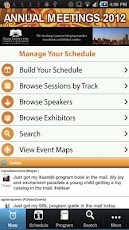
AAR / SBL 2012 Annual Meeting App

James McGrath has just noted on his Patheos blog that this year's AAR/SBL app is now available for iOS devices. I can't find the Android version, but I'm trusting it's coming. (If you find it, please leave a comment here pointing to it.) The meeting is in Chicago, Nov 17-20, 2012.

I had some critiques of last year's app, but I still found it more useful than not. 

UPDATE: 2012.11.01: The Android app was just made available. Click through to either the Android or iOS app HERE.


From the description, app features include:
  • Native app: No wifi connection required to access the conference program, schedule or animated maps.
  • Now: Stay informed about hot issues, event program changes, your upcoming sessions and organizer messages.
  • Program: Browse the entire event program to build your personal schedule, bookmark sessions or speakers, or access session handouts as available.
  • Take notes and email them as part of your trip report for reference.
  • Exhibitors, Maps, related conference info and much more. 
Quick test run: Just downloaded and fired up the app. BTW, free wireless internet access has been promised throughout the convention center so connecting should not be an issue.
  • There are a number of ways in the app to email or send to Twitter or Facebook (but not LinkedIn which was in last years) notes you've added, schedule, etc. There's even a live Twitter feed on the home screen of the app. (Twitter: #SBLAAR or #AARSBL)
  • Yes! You can add your own appointments to the schedule!
  • Yes! You can export your entire schedule so that it can be imported to Outlook, Google Calendar, iOS, Android via an ICS file.
  • Maps of all the venues are great and a link to Google maps of Chicago. The exhibitor menu is similar to last year's, but that is good.
The app is similar to the 2011 one, but is definitely improved. More ways to search / find what you are looking for and better ways for sharing / exporting stuff.

UPDATE: 2012.11.07: There is now an official user guide to the app here. (PDF)

Friday, October 26, 2012

Finding a specific word in a verse in any Bible: BibleWorks and Logos

An Accordance user recently asked David Lang on the Accordance Blog this question:
How would I find in which version of the Bible is "endurance" used in Hebrews 12:1?
The issue here is that some English versions use "endurance," but others use "patience" or "perseverance" or perhaps some more 'dynamic' rendering. Lang provided a nice means for getting the answer in Accordance. I'll provide here what I think are the best ways to do so in BibleWorks and Logos.

BibleWorks


There are a few ways to conduct such a search, but I think the easiest is as follows. (If you can think of a better way, let us know.)
  1. We want to search all the English version Bibles we have installed, so first get those all displayed by using the following command: d c english   ENTER
    (d=display; c=clear all versions; english=display all English versions)
  2. (A shortcut way to the results now is simply to go to Hebrews 12:1 and scan all these versions. To conduct the search in a more generally automated way and have the results highlighted, continue with the following steps.)
  3. Now we want to do a "cross-version search." To access this, right click anywhere in the command box, choose "Cross Version Search Mode" and select "Search All Display Versions." Note in the graphic above that when you do this, the second button in the green bar below the command line turns yellow to remind you that you have this mode activated.
  4. Now we want to limit our search to the one particular verse, in this case, Hebrews 12:1. In the command line: l heb 12.1   ENTER
    Note that the first button in the green bar turns yellow to remind you  that limits are set. (The limit set is also visible at the bottom of the BW window.)
  5. We are now ready to run the search. In the command line: .endurance   ENTER
  6. The results appear in a popup window. (see below)

You usually don't want to use the cross-version search, so be sure to reset it  back to "Search only current version."

Logos

I think this is the best way, but someone may know of a better way.

  1. The first thing I did is to create a "collection" of all my English Bibles. The graphic above shows how to use Tools > Library > Collections and then create a new collection. I named my collection "English Bibles" and dragged/dropped all the Bibles I wanted from the (lengthy) list that appeared. Note that you only have to create this collection once, and it is a handy one to have later on for other searches.
  2. (A shortcut way that requires some manual scanning now is to use Tools > Text Comparison and look up Hebrews 12:1 in the English Bibles collection you just made. To conduct the search in a more generally automated way and have the results highlighted, continue with the following steps.)
  3. The graphic below shows how I ran my search:
    • Click on the search magnifier icon
    • Choose Bible as your type of search
    • Search "All Bible Text"
    • To limit your range, click on the range after the first "in" and, in this case, define the new range of Hebrews 12:1
    • Click on the spot after the second "in" and choose that collection of English Bibles you just created and hit ENTER
  4. Your results should look something like the graphic below. The easiest way to see the results you want is to click on the Result column and order them alphabetically.

There you go! If you know of better ways, please share them in the comments.

UPDATE 2012.10.26: Be sure to read the solution proposed by Brenda in the comments! Here's an instance where a Google search  may be the quickest way to go. A few additional things I can add to Brenda's suggestion:
  • I added a parenthetical step 2 for both BibleWorks and Logos above which basically reproduces Brenda's suggestion within each program. You simply are displaying all the English versions and scanning for results.
  • Brenda suggests using the Online Parallel Bible tool in Biblos.com. 18 English versions are available on that site: NIV84, NLT, ESV, NASB, KJV, ISV, Aramaic Bible in Plain English, God's Word, KJ2000, AKJ, ASV, Douay-Rheims, Darby, ERV, Webster's, and Weymouth. Another good option is to use the Net Bible Study Environment and click on the Parallel tab where 10 English versions are available: NET, NIV84, NASB, ESV, NLT, Message, BBE, NKJV, NRSV, and KJV. With either of these, and whether you are using IE or Firefox, note that you can quickly find the word you are looking for by searching for it (CTRL-F) on the page and using the option to highlight all occurences.

Wednesday, October 3, 2012

BibleWorks on a Mac - Update!

BibleWorks has just announced that after several months of work with the developers at CodeWeavers they have released a "Public Preview Mac Installer" that allows you to run BW on a Mac natively. It has been previously possible to run this Windows program either in a virtual machine on your Mac or by using a dual-boot setup, but for each of these, there was the extra cost of getting a Windows license and/or the VM software. 

The new Mac installer is free, but it does require that you have BibleWorks 9, rev. 3 or better. (If you have an earlier revision of BW9, you can order the DVDs needed for $25. If you have BW8 or earlier, then you should either upgrade or check out Matt Day's very helpful guide to make BW work on a Mac in the most effective and economical way.) Below is a chart indicating the relative dis/advantages.
Be sure to check out the system requirements, and then check out your options and download the new free installer from THIS PAGE. 
UPDATE: This installer is free until 10/15/2012. After that it is $6.
 
BTW, if you are interested, my recommendations for a customized installation are HERE.


UPDATE: Be sure to check this post on the BibleWorks Forum for more info about the new installer. It also includes directions on how to install BW9 if you don't rev. 3.

Tuesday, October 2, 2012

The Top 100 Tools for Learning 2012 list

Jane Hart annually releases her "The Top 100 Tools for Learning" list, and the 2012 one has just been posted.
This year’s Top 100 Tools for Learning list (the 6th Annual Survey) has been compiled from the votes of 582 learning professionals worldwide – 55% working in education, 45% working in non-educational organizations.

The top tool for the 4th year running is Twitter, with both YouTube (2nd) and Google Docs (aka Google Drive)  (3rd) retaining their places for the 3rd year in succession.
Next in line in the top 10 are Google Search, WordPress, Dropbox, Skype, PowerPoint, Facebook, and Wikipedia. You can view the list either as this Slideshare (with commentary on each) or as a textual list.

In both formats, she indicates whether its primary use is for personal/professional, educational, or enterprise contexts.

I did participate in the voting, but a couple of my favorites didn't make the list. Some comments:
  • Dropbox (#6) is fine, but I much prefer SugarSync. (Disclaimer: Those links should get both you and me a little extra space. Thanks!) You get 5GB free instead of just 2GB. More helpfully, SugarSync allows you to point to existing folders on your system with which you can sync on another system. Dropbox requires you to create a special folder to drop things in. Personally, I use SugarSync to keep my notes and user-modified files in BibleWorks, Logos, and Lightroom synced. Both programs also have mobile apps so that I can access files from my smartphone. Don't forget Microsoft's SkyDrive (#98 on the list) which offers 7GB free and allows you to edit Microsoft docs online. In addition to syncing, remember that these services also provide backup for your data.
  • If you want a different look than PowerPoint (#8), try Prezi (#14).
  • I still use Skype (#7), but Google+ Hangouts (#17) has some distinct advantages, especially for allowing multiple video feeds.
  • I really like Diigo (#18) as a social bookmarking tool, and I've tried to get my students to collaborate on using it for creating bibliographies for a class or topic, but it apparently requires some discipline to use it regularly.
  • Ok, I'm on Pinterest (#36), but I still don't really get it... I also wonder about LinkedIn (#23). Are most people on it simply because they are afraid they're missing something if they are not on it? I set up an account long ago, but I don't pay it much attention.
  • One tool I'm checking out that isn't on the list is Netvibes. I have loved using my iGoogle homepage, but with it being vaporized in a year, I'm looking for an alternative. Netvibes is one possibility. (Any one using this and having a good experience with it?)
  • The really significant omission on the list is Zotero. I have come to use this nearly daily as a way to organize books, articles, PDFs, and web pages I come across. It's such an outstanding bibliographic tool. I did buy the Scanner for Zotero app for my Droid X, so I'm prepared for Society of Biblical Literature meeting this year. (I had mentioned this after last year's SBL as a better way of making note of the books I saw there.) Zotero also allows for collaboration with the sharing of libraries, so it's one way I share my bibliographies with my students and allow them to add to it. (There are Zotero mobile apps for other platforms too.)
So, check out Jane Hart's C4LPT blog, and if you are looking for some tech tool to accomplish a task, her site is a great place to look. Especially check out her "Best of Breed" categorized list.

Monday, October 1, 2012

The Scribes by Peter Rodgers

Until 4 October 2012, The Scribes is free as a Kindle download on Amazon. I was reading this book last year and 'enthralled' my students by serially relating the romantic dilemma in the story as it developed. There is Justin (the literalist scribe from Rome who is concerned about exact copying) and Juliana (the scribe from Alexandria who is more open to dynamic renderings). Will they ever be able to find true love when their endings to the Gospel of Mark don't match? Actually, it is a very fun introduction to text criticism and is well worth reading as a historical fiction. (You didn't ever think you'd see "fun" and "textual criticism" together, did you?) Get it for free while you can, but if you miss this offer, it's still worth the $3 regular price as a Kindle download.

HT to Rodney Decker for bringing this to my attention.

Tim Bulkeley Online Book Launch: Not Only a Father


Tim Bulkeley of Sansblogue fame has announced a forthcoming book (10 Oct 2012) you can buy on Amazon (clink on graphic above), but he has also published it online where it can be read for free. This is interesting for a number of reasons.
  • At the top of the list, the topic is an important one, and Bulkeley has been working on it for many years.
  • It is an experiment in online publishing. I'm interested to see how this turns out for him.
  • The online version of the book is organized by chapter sections, but he is using a Wordpress plugin that allows for commenting on the paragraph level that runs alongside the text rather than just commenting at the end of the post.
  • He's hoping that this becomes a way for people to engage not only with him as the author but might also serve as a discussion platform for people to talk with each other.
Check it out HERE.

Thursday, September 27, 2012

Bethsaida 2012


This photo book provides a quick overview of the first two weeks of the archaeological dig at Bethsaida this summer. I did it for my own collection, so it features ME!, but there is enough general information to be helpful to others.

I'm well aware that there is some skepticism whether e-Tell actually is Bethsaida. After digging at the site, I think I’m supposed to be a true believer that it is!

Well, I’m not a true believer, but I’m pretty much persuaded. They have determined that there was some kind of lagoon system below e-Tell in the 1st century, so it certainly was accessible to the Sea. I wonder if maybe things were already getting difficult, and it perhaps is not a surprise that the New Testament locates Peter, James, and John in Capernaum rather than their home town of Bethsaida. It would be a lot more convenient. In terms of artifacts, there is much to commend e-Tell (especially as compared to the Araj site for which there is not any excavation evidence yet). We and others before us found Herodian lamps, limestone vessels, and coins that all indicate 1st century BCE/CE Jewish habitation. (We found a silver Cleopatra coin while I was working from late 1st century BCE.) In terms of architecture, they were working in one area that was 1st century CE. What’s missing to confirm identification as the Bethsaida? Well, it still doesn’t look like it was much of a polis. Of course there is still lots to excavate, but no sign of Philip’s tomb which I’m kind of imagining to be at least close to the scale of Herod’s at Herodium. There’s the Temple, but it’s hard to see how it was very impressive as anything in the 1st century. No synagogue found yet either. Still, there is still a lot of the site to be investigated. 

For more info about this dig, check at the official site at the University of Nebraska-Omaha (where Rami Arav teaches) or the semi-official site run by Shai Schwartz.

Friday, September 21, 2012

Greek and Hebrew on Google Drive and Android

 I have been using Google Docs more and more in my classes for students working collaboratively. I also use it for some documents that I want to have available irrespective of what computer I'm using. Google has been transitioning, so now it's all basically part of Google Drive.

One problem in my classroom work, however, is that Google Docs did a lousy job with Greek fonts. I had previously noted that Google had obtained rights to David Perry's great Cardo font, but that it did not include the full font set for Greek. If you used Cardo in MS Word on your local system and then tried to upload it into Google Docs, the Greek was a mess. I'm happy to report that the issue has now been remedied. You may need to do a little extra work to use it in your Google Docs, however. If you don't have Cardo in your Google Docs, here's what you need to do. As you can see in the screen shot below, click on the font drop-down, scroll to the bottom, and click on "Add fonts." This will pop up a screen, and you can search for Cardo and include it in your Google Docs collection. 

All good! Yes! No... As you can see with the graphic at the top of the screen, both Greek and Hebrew look great in Google. Hebrew works right-to-left properly and everything. Greek and Hebrew looks good in both TimesNewRoman and Cardo. You may be wondering why bother with Cardo at all if TimesNewRoman works ok. Depending on a variety of operating system issues, I have simply found Cardo is the best choice, and it includes all the Hebrew, Greek, and text critical characters and more.

Still not all good, however... Google has recently made Google Drive docs editable on your Android and iStuff. Excellent! But here's where the font issue arises again. I can't speak for iPhone/iPad, but on my Android (using a Droid X with 2.3.4), neither TimesNewRoman nor Cardo can display the Greek properly. (Hebrew displays fine, but my Android can't handle right-to-left.) So, what to do? I have just discovered that the Ubuntu font will give you the Greek display that you want as you can see in the graphic at the top.

Great! So now you want to use Ubuntu in documents that you will be sharing on your Google Drive, but... you don't have Ubuntu on your local system. So, here's what you do:
  • Go to the Google Web Fonts page, 
  • Search for Ubuntu,
  • Click Add to Collection
  • At the bottom of the screen, click on Use
  • On the next screen, click the styles you want to have, then
  • Click on "Download your Collection" (upper right)
  • Go ahead and download, unzip, and install, and you are good to go!
BOTTOM LINE: For docs I'm sharing on Google Drive where I want Greek (and Hebrew) to show up properly I can now use Cardo. If I also want it on my mobile device, use Ubuntu.

Thursday, September 13, 2012

Typing Unicode Greek, Hebrew, and more

 Limited Time Tavultesoft Keyman Special Pricing! Details below

I have posted previously about the various options for typing Greek, Hebrew, Syriac, and other biblical languages using Unicode. Here's an update and a link to a good deal on Keyman...
  • The Tyndale Unicode Font Kit is one good option, but I don't really like the way it requires you to type the Greek accents and breathings before you type the vowel. (The Greek Polytonic keyboard that can be installed through the Windows system is similar.) The Hebrew keyboard is different but reasonable. What's nice about this kit is that it has good documentation with installations for various Windows systems as well as Macs. It also helpfully installs the Cardo Unicode font which is great, free font for biblical studies since it includes a full set of Hebrew, Greek, transliteration, and critical marker characters. For my less tech-savvy students, I just have them use this kit.
  • The keyboards offered by Logos are another good option for Windows users and come with helpful installation and layout guides. Keyboards are available for Greek, Hebrew, Syriac, Coptic, and also a Transliteration keyboard. If you do a lot of transliterating of Greek or Hebrew, that last one is very helpful as a replacement for the standard US keyboard. (There is, however, a minor issue with the Greek Unicode due to its Beta Code background. E.g., to get an eta with a rough breathing, acute accent, and iota subscript, you need to enter the characters exactly in that order to get a proper combined character made of the four different elements. Using Keyman as I describe below, it doesn't matter which order you use after entering the vowel, and the result is the proper and preferred precomposed character.) The Hebrew keyboard is a bit different, but it can be easily learned. If you regularly type in both Hebrew and Syriac, this is probably the best way to go, because the Syriac keyboard matches the Hebrew as much as possible.
  • Logos does offer the wonderful standalone Shibboleth program which is free. (Windows only) It provides a fully graphical way to type Hebrew, Aramaic, Syriac, Arabic, Ethiopic, Greek, Coptic, Ugaritic, Armenian, South Arabian, Transliteration, Hieroglyphs, Akkadian, Hittite, and Old Persian. It's a copy/paste process, but if you only type infrequently in any of these languages, this is your best option. (The same quirk with Greek Unicode occurs as described in the previous bullet, but the graphical interface guides you to enter the elements in the correct order. You still get the combined instead of the precomposed character.)
  • There are web options for typing Greek. You will want to remember at least one of these, because it doesn't matter what operating system you are using, and if you are not at your own machine, you can go to one of these sites to get the proper Greek you need.You simply type and then use copy/paste to get the text into your document.
    • TypeGreek: TypeGreek does not require Beta Code ordering of diacritic entry and returns the proper precomposed character. The only thing I don't like about this site is that to get keyboard help, when you click on the button, it takes you a different page, and you lose everything you have already entered.
    • Greek Inputter: This one does use Beta Code ordering, but it provides good keyboard help just below the input window.
    • KeymanWeb Notepad: This is a great way to gain access to hundreds of left-to-right language keyboards. It is a type/copy/paste option, but you do have a popup keyboard to help.
    • Keyman Bookmarklet: This is your all-language solution, because you can use any of the hundreds of keyboards in Keyman, including right-to-left languages. The bookmarklet is saved as a bookmark with your browser bookmarks. Regardless of the web page you are on, you can click it and type in your chosen language. Popup keyboard help as well. (More info and an example of how you can embed on a personal web page here. HT: Jim Darlack for reminding me of these last 2 options.) 
  •  Tavultesoft Keyman: The reason for trying to get this post up is that there is a great sale on Keyman only good through 19 September 2012. Keyman is for Windows only, but it really is the most elegant way to type in Greek and Hebrew (and a multitude of other languages). I like the Greek keyboard layout, and it properly creates the precomposed characters. You have the option of having an onscreen keyboard popup when you type which is a great help. (Cf. the graphic at top) It has yet another Hebrew layout which is reasonable enough, and you do have the onscreen keyboard help. Installation is a little more involved than I would like (but it perhaps was due to the other keyboards I had already installed). Keyman kind of comes between you and operating system (unlike the Logos keyboards which become part of it), so if you look at your Greek and Hebrew keyboards in your Regional Language settings, they will say that you are using a US (or whatever your default language is) keyboard. Personally, I set up a macro in MS Word which I then assigned to a hotkey so that when I hit Shift-Alt-G, I activate the Greek keyboard and switch to Cardo font. Hitting that hotkey again toggles me back to English and the default fault. There must be hundreds of keyboards available for languages throughout the world. For Greek and Hebrew, I recommend using the Galaxie BibleScript Mnemonic Keyboards. (If you also type in Syriac, your best bet is the basic Syriac Phonetic keyboard, but it does not exactly match the Hebrew. You might be better off looking at the Logos keyboards.) If you do a lot of typing in Hebrew and Greek this is a great solution. BTW, you can download an evaluation version that's good for 30 days. And, until 19 September 2012 you can get Keyman at a great price that is 70% off. The Light version is only $9 (or $14 for 2 licenses - each system needs its own license), and the Professional version is $25 ($40 for 2 licenses). The most important difference between the Light and Professional is that you are limited to only two keyboards in the Light version. USE THIS LINK to get the discount.
BOTTOM LINE: I bought 2 licenses of Keyman (one for home, one for school system). I use Shibboleth for occasional typing in other biblical languages. I use TypeGreek when I'm not working on one of my own systems.

Monday, September 10, 2012

BibleWorks Installation and Customization

I have just posted a collection of guides with suggestions on installing and customizing BibleWorks 9.
  • The installation guide is intended for a Windows computer. If you are wanting to install BW on a Mac, Matt Day has provided a very helpful guide to make it work in the most effective and economical way. After installation, you can return to Parts 2 and following in my guides for further customization.
  • BibleWorks comes with a collection of excellent How-To videos. Some of my guides overlap with them, but my focus is more on customization and personalization than on use of the program. In customizing, however, you will discover quite a few ways to use the program. Further, my guides are available as DOCX or PDF files or some slideshows if you're the sort who would rather read directions than watch a video.
The incentive to compose these guides is for the seminary students in my Greek and Gospels classes. Please note that many of the suggestions I make in the guides are subjective and are particularly oriented to my intended audience. Still, my suggestions arise from quite a few years of experience with BibleWorks. I hope you find them useful.

HERE is the BibleWorks Installation and Customization Guide

Bible Software Decisions: Accordance, BibleWorks, Logos, et al

It's time again for our incoming students to get their Bible software. At our seminary, students are required basically to have a year of Greek grammar and another year of Greek reading connected with our Gospels and Paul classes. This is still not enough time to expect students to be able simply to pick up a Greek NT and start reading. I am quite aware of the various arguments about how Greek should be taught and the pros/cons of Bible software, but we have decided to make Bible software an integral part of our Greek instruction. As for Hebrew, it is not a requirement, but many of our students do end up taking at least a semester of Hebrew and can follow it up with additional reading courses. For this brief introduction to Hebrew, the software is a critical part of the instruction.

We have "required" students to use Bible software, and we do think it is an excellent investment not only for seminary but for their lifelong ministry, but we are also aware that it can be a significant investment. We encourage students to bring their systems to class so that they can use the software as we go along, but for those who don't have a portable system or who have not purchased the software, we have installed Bible software on quite a few seminary systems to which they have access.

Now, what Bible software should they get? There are some free options which work quite well. I recommend e-Sword, LaParola, or The Word. These are fine programs, but they aren't as fully capable as one of the big three: Accordance, BibleWorks, or Logos. So, which of these should a student get? Ideally, we would all have the same operating system (and same version of said OS) and the same Bible software package (and same version of said software). Up to just a couple years ago, this was impossible because of the Win/Mac divide, but it really wasn't too big of a deal because we had so few Mac users. Today, I'm seeing many more Mac users, so the issue has become more complicated. With some limitations, it has been possible all along to run Accordance on a PC using the Basilisk emulator and to run BibleWorks or Logos on a Mac using one of the Windows emulators. Logos, commendably, was the first to develop both Win and Mac versions. Accordance has recently announced work on a Win version. BibleWorks is cooperating with CrossOver to provide an easy way for it to work on a Mac.

Unfortunately, matters are becoming more complicated since now students are also coming to class with their smartphones, iPads, or Android tablets, and Windows8 tablets are now on the near horizon as well. Logos, commendably again, has been particularly active in providing multi-platform options and is available for iPhone, iPad, Android, Kindle, Win, Mac, and also accessible as a web-based resource at Biblia.com. Accordance has an app for iPhone and iPad. BibleWorks has already been demonstrated working on a Win8 tablet. UPDATE: And now BibleWorks has made it possible to run it natively (i.e., you don't need Windows) on a Mac.

So, where does this leave our students as we ask them to buy Bible software? As attractive as it would be, we have been reluctant to choose one of them and make it a requirement. Each of these programs has their particular strengths and drawbacks. In practice, what has happened is that we have a few people using Accordance, a few using Logos, but the majority are using BibleWorks. Why? First, part of it is history. About 10 years ago at our seminary, everyone was using Windows and the software the Bible faculty was using was the old Bible Windows. It was a functional program (I couldn't have done my dissertation without it), but for a number of reasons, it was surpassed by other programs. (Actually, Bible Windows is still available, now as Bibloi 8.0, and is a very capable $95 program.) We considered both Logos and BibleWorks, and at that time, BibleWorks was clearly a better program for working directly with the biblical texts and was significantly cheaper as well. The Bible faculty (somewhat reluctantly) made the switch to BibleWorks, and it was also installed on the classroom and campus systems. Today, then, there is simply inertia to stay with a system that we know how to use, has been paid for, and is widely available on campus. Second, it is appealing for students to have BibleWorks when they can see it being used by the instructor in class and follow along on their own systems. I know Logos well enough to show students how to use it. The Accordance users band together and help each other out (and claim that it is intuitive enough not to need any help!). Third, in terms of what we are asking students to be able to do, BibleWorks is the cheapest and really the best 'value.' With student discounts, the full BibleWorks program costs about the same as the Original Languages Collection in Accordance or the Original Languages Library in Logos. Compare what is included in each. For obtaining access to the Hebrew and Greek texts (and associated text critical resources) and a range of English Bible versions along with lexical resources, apocryphal and pseudepigraphal texts, Philo, Joesphus, and early Church texts, BibleWorks is hard to beat. (BTW, I commend Accordance for the new "collections" they offer in Accordance10 rather than the bundles of the previous version which I found to be very confusing.)

Again, I am aware of other factors that go into 'value' (usability, interface, multi-platform support, library management features, inclusion of non-biblical resources, etc.), so that is why we haven't settled on one as the required package. Given the other factors I mention, it does explain why we are mostly running BibleWorks. I'd be interesting in hearing what other institutions have chosen to do.

Friday, September 7, 2012

Android Bible Apps - Relative Speed

I am still working through the Bible apps I have on my Droid X. A common situation for me in using these is when I am in church and wanting to follow along with the lessons being read. I usually like to work in the Greek so I like to have the LXX and a Greek NT handy. One of my frustrations is when the app takes so long to load that I never can catch up with the reader. Even 10 seconds can seem like a long time... Given our liturgy, there is usually enough time between readings that my smartphone turns off, so I need to jump back in to the app. So, I conducted an unscientific test to see how long it takes to:
  • Tap the app to launch it
  • Exit and immediately relaunch the app
  • Switch to a new passage
  • Switch to another version (one that's been previously downloaded)
  • Switch back to the previous version.
I tried to make sure that nothing else was going on with the phone, and I ran the tests twice. The averages do basically confirm how it feels in real practice.

Do note, however, that there are lots of other factors involved that I do not include here.
  • CadreBible and MySword have very nice Parallel or Compare views, and Logos and Olive Tree allow for split screen views if you want multiple versions or languages displayed. For this test, I was just interested in getting to reading a text as quickly as possible. 
  • This test does not take into account how long it takes to navigate to a different version or passage. It's not (usually) a significant addition of time (except for Logos which does not have a recently used list), but some apps have better and faster ways of moving around. 
  • I have these different apps because I use them for different things, and each has different capabilities. Since I have a good Logos library, I tend to use it when I'm needing to do more in-depth work. So, the speed is probably also dependent somewhat on how many resources are included and the capabilities of the program.
  • Laridian's PocketBible is still in pre-release, and I only have a few versions to use with it.
I have my bottom line below, but here are my results. My color coding scheme is rather arbitrary, but it highlights the differences well enough. Green is best, yellow is average, red is slow. (Click on graphic to enlarge)

BOTTOM LINE
As you can see, there are significant differences in how fast each app works on my Droid X. As for me, especially for working with Greek, MySword is the clear winner. I don't have as many English versions in MySword, so if I'm wanting to look at the most English versions, I use YouVersion. It, however, does not have a good way to see multiple versions displayed together, and in that case, I'm back to MySword, CadreBible, Olive Tree, or Logos.

As usual, your own experience probably will vary. Updates to the apps are regularly coming which would likely change results. Still, 'speediness' is a factor developers should keep in mind as they work on their apps.

Thursday, September 6, 2012

Versions Available in Android Bible Apps

Android Bible Apps Available Versions as of 2012.09.06

 Apps surveyed (with links to install):
I am working toward updated and fuller reviews of the various Bible apps for Android, but in the meantime, I've collated lists of Bible versions that are available in each. Note that my listing is somewhat eclectic in including only English translations I regard as significant along with Greek, Hebrew, and Latin original texts. Each of the apps offers many other texts in other languages that I do not include here. I am also not evaluating the functionality of the app at this time except that I note instances where accented Greek is not displayed properly. Also note that I am highlighting what is available for free in each of the apps, but if you want more and better resources, they can be purchased. You should especially look at the offerings from CadreBible, Logos (and the associated Biblia.com), and Olive Tree.

You can see the full listing of available versions for each app HERE (DOCX / PDF) which also includes prices for additional versions. Otherwise I have summarized my results below. As usual, if  you happen to stumble upon this page a couple years down the line, note that probably everything has changed!

Conclusions:

· If you are mainly interested in consulting a variety of useful English translations, YouVersion is clearly the app to use. In addition to all the versions, it also includes access to the NET Bible with all its excellent notes. Some versions—e.g., the NRSV—are only available for purchase or via  a web browser.
If you are interested in looking at Greek texts:
  • For the Septuagint (LXX), MySword is your best choice and even has a version that is parsed and linked to Strong's.
  • The NestleAland or UBS texts are only available for purchase in some of the apps. A good and free alternative is the SBL GNT which was sponsored by Logos. The SBL GNT is available in CadreBible, Logos, MySword, and OliveTree. (I wish I could include YouVersion here, but I cannot get the accented Greek to display properly.)
  • Most apps have some edition of the Textus Receptus or Byzantine text or some other early critical edition (Westcott-Hort or Tischendorf). Among them, your best choice is probably MySword since it also includes Scriveners (1894) parsed and linked with Strong's.
· If you are interested in texts of the Hebrew Bible / OT, the standard BHS text is only available for purchase in a few apps. Some acceptable alternative texts (Aleppo or Leningrad) are available in MySword, CadreBible, and Olive Tree. I'm watching ANDBible to see what comes of their promised Open Scriptures Morphological Hebrew Bible that is linked with Strong's.
· For Latin, some edition of the Vulgate is available in ANDBible, CadreBible, MySword, Logos, Olive Tree, and Biblia.com.

Summary of Versions available:

English

·         NRSV: The NRSV is not available for free in any Android app. The cheapest way to get it is either in Olive Tree or as part of a Logos library.It's also available for CadreBible. If you have web access, you can read the NRSV at Biblia.com, BibleStudyTools, or the Oremus Bible Browser.
·         The NET Bible:  The NET is available with limited notes in many of the apps. It's available for free in YouVersion and at Biblia.com. It can be purchased for Olive Tree, Logos, or CadreBible.
·         KJV linked to Strong's: for purchase in CadreBible and Olive Tree
·         Other English versions worth consulting:
o   ANDBible: ESV, Lexham, translations of Peshitto NT
o   Biblia.com: ESV, Good News, HCSB,Lexham, Message, NASB, NIV, NLT
o   Logos: ESV, Good News, HCSB, Lexham, NASB, NLT
o   MySword: Lexham, LXX Brenton
o   YouVersion: CEB, CEV, ESV, Good News, HCSB, Lexham, Message, NASB, NIV, NLT, TNIV

Greek (with correct display of accented letters)

·         LXX: ANDBible ,CadreBible, MySword
·         LXX Parsed/Strongs: MySword
·         SBLGNT: Biblia.com, CadreBible, Logos, MySword, OliveTree
·         NestleAland: available for purchase in CadreBible, Logos, OliveTree
·         Westcott-Hort: ANDBible, CadreBible, Logos 
·         Some version of Textus Receptus or Byzantine: ANDBible, CadreBible, Logos, Olive Tree, MySword
·         Some Greek NT parsed/Strong's: ANDBible, MySword

Hebrew

·         BHS:  available for purchase in CadreBible, Logos, Olive Tree
·         Other Hebrew Bible (Aleppo and/or Leningrad): ANDBible, MySword, CadreBible, Olive Tree

Latin

·         Vulgate: ANDBible, CadreBible, MySword, Logos, Olive Tree, Biblia.com


Wednesday, September 5, 2012

Accordance 10 is now available

Accordance announced a couple weeks ago that version 10 is now available. 
Be sure to check out the new Accordance 10 video, Dr. J's "First Look" podcast, check out the list of what's new in 10, or take our full-blown tour of Accordance features.
David Lang has been highlighting many of the new features on the Accordance blog. A number of reviews are already available at the top of this page.

Since I am primarily a Windows and Android type of guy, I am even more interested by the other announcment Accordance made that a Windows version will be available in 2013.

Reviving this blog...

It's been a while since I last posted here, but I'm hoping to revive this blog and post regularly. I have a bunch of older stuff that I never finished and published, and there has been plenty of new stuff happening in the Bible and tech sphere.

As for me, I had a very busy spring semester which included teaching two classes on the Parables of Jesus online. That was a learning experience for me...

I spent most of June in Israel. The first two weeks were at Bethsaida as part of an archaeological dig. More on that later, but there is info here and here. I ended up hiking over 150 miles, biking another 70+ miles, and driving 600+ miles. It was a great experience.

Chunks of July and August were spent in Minnesota with family, in Montana teaching at Christikon Bible Camp, and in Yellowstone for an "Ichtheology" conference.

And now, I'm enjoying a sabbatical break for the fall, and that's why I have some time to get this blog going again.